Convert Files to HTML with macOS Automator Quick Actions
2022-01-28
Since a few people have reached out and thanked me for my previous post Batch Converting Images to webp with macOS Automator, I thought I would continue to share more of my own custom Automator Quick Actions. Today’s post will cover the ability to convert any text-based document into pure HTML.
I know - there are over 6 billion conversion apps that do this very same thing. But our way of doing it is cooler. Our conversion tool:
- Will run directly inside macOS Finder (right-click actions FTW)
- Can batch convert multiple files at once
- Can convert mixed files types at the same time
And it can do all of this for free on your existing macOS system. No apps required. So, enough chit-chat, let’s get started!
The Dependencies
Unfortunately, setting things up isn’t as simple as clicking a single Install button and calling it a day. But don’t start to panic! I assure you everything we’ll be doing is actually quite easy to breeze through - trust me.
Our main requirements will consistent of the following:
- Homebrew
- Pandoc
- Ability to open Terminal
Installing Homebrew
Homebrew is a simple package manager for macOS. The beauty of having Homebrew is the flexibility in the future for installing other custom packages. Overall it’s just a nice piece of software to have on your machine.
If you have already installed Homebrew in the past, ignore this step and continue down the page. If not, simply open your Terminal and run:
/bin/bash -c "$(curl -fsSL https://raw.githubusercontent.com/Homebrew/install/HEAD/install.sh)"
Let that finish and you’re done! Also feel free to read more about Homebrew on the official website. Knowledge is power!
Installing Pandoc
The package that is going to be doing all the heavy-lifting for us is pandoc. Because we have Homebrew on our machine now, installing this package is as simple as opening our Terminal again and running:
brew install pandoc
Wait for everything to finish and you’re done!
Our Custom Automator Quick Action
Next you’ll want to open the macOS Automator app and create a new “Quick Action” when given the prompt to do so.
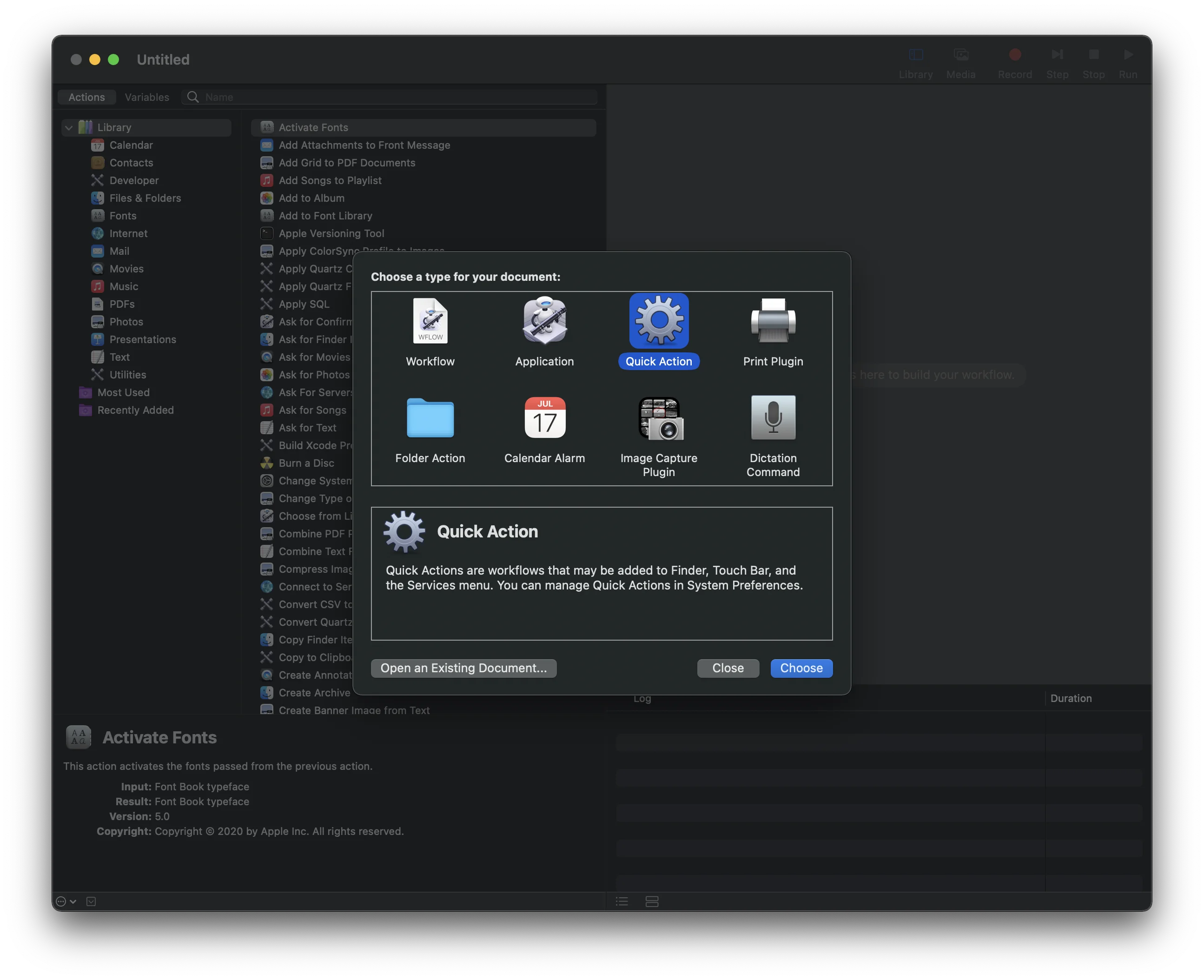
After opening Automator, select “Quick Action” from the menu
Now do the following (reference the image further below to make sure your parameters match):
- Set “Workflow receives current” to documents in any application
- In the search bar type in “Run Shell Script”
- Drag-and-drop the “Run Shell Script” from the left pane into the right pane
- Set the “Shell” parameter to /bin/bash
- Set “Pass input” as as arguments
Once all that is done, simply paste the following in the open text field within the “Run Shell Script” item:
for f in "$@"
do
/opt/homebrew/bin/pandoc -o "${f%.*}.html" "$f"
done
If you’ve done everything correctly it should look something like this:
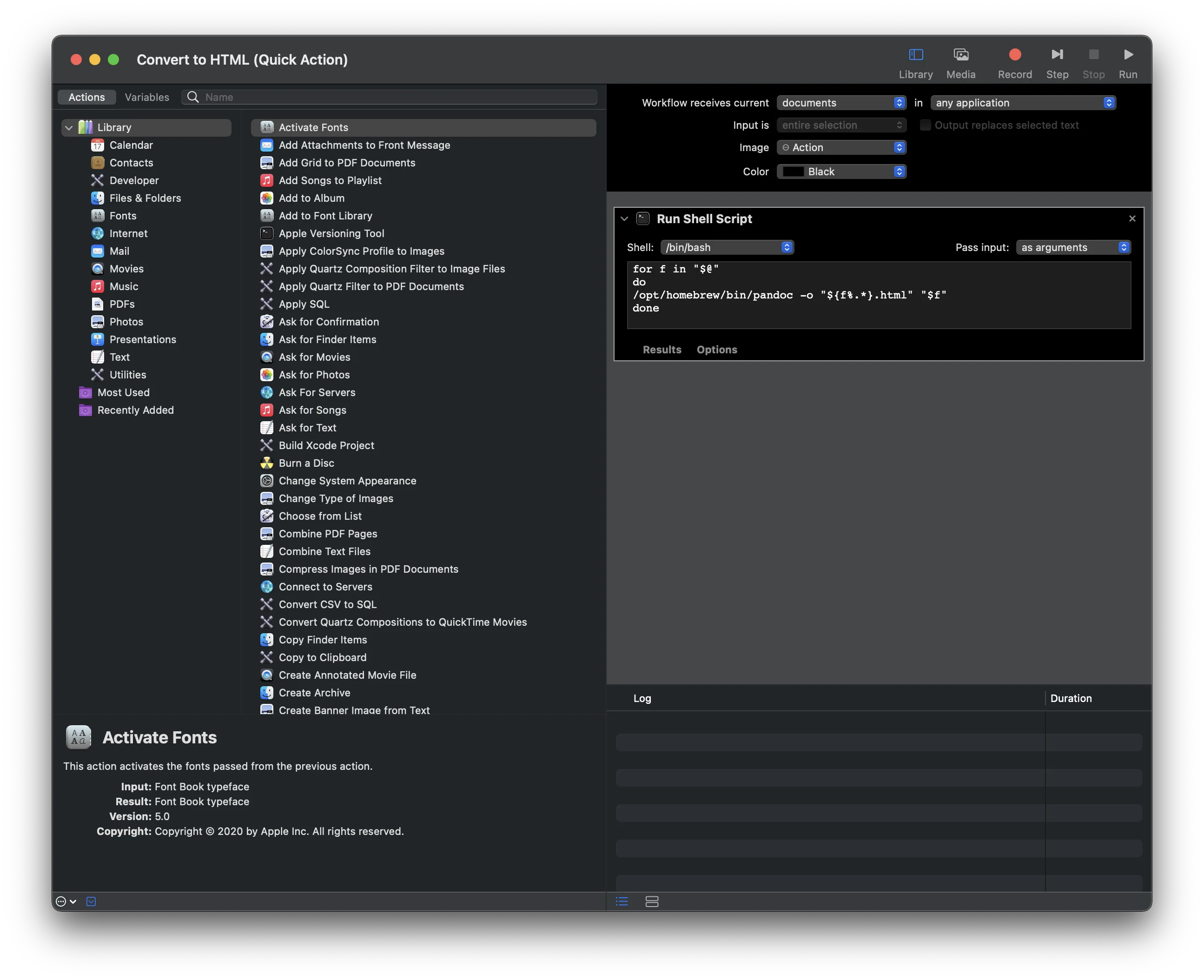
Save this new Quick Action (Name is something like “Convert to HTML” to keep things simple). That’s it! Amazing, right?
Time to Convert
Now it is finally time to see our Quick Action is action! Navigate to any document file in a Finder window and follow along.
- First, right-click on the file you wish to convert. See Fig.1)
- In the pop-up container, scroll down and hover over
Quick Actions. - A secondary pop-out will appear. Look for the action
Convert File to HTMLand click it. See Fig.2)
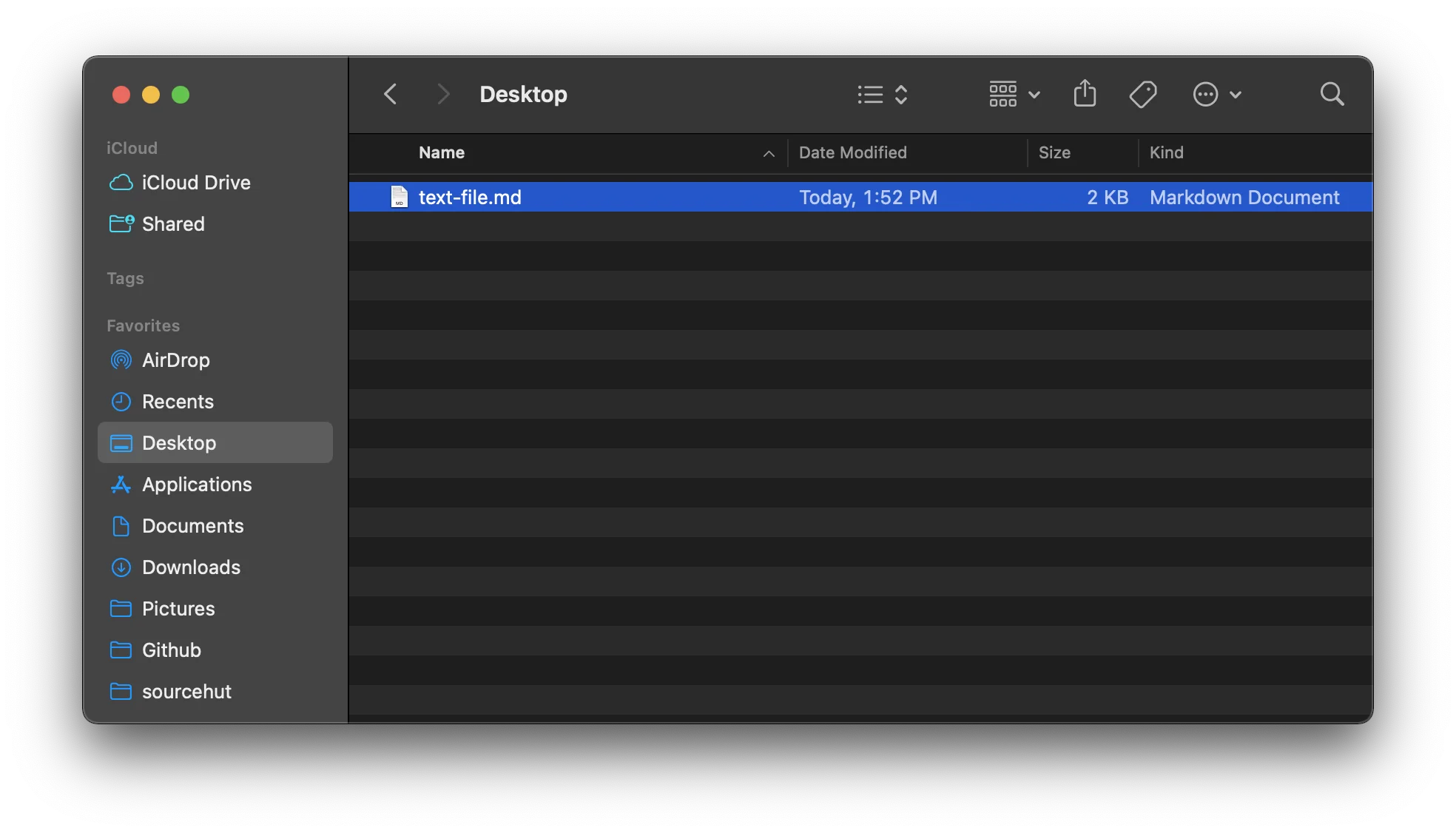
Fig 1: Finding and right-clicking on your desired file
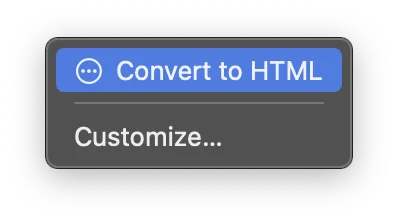
Fig 2: From the “Quick Actions” menu, select “Convert to HTML”
If everything was set up properly (and depending on the size of the file) you should see your converted HTML file show up right next to your existing document. Time to celebrate!
Don’t forget - you can also batch convert multiple files and multiple file types at once. The possibilities are endless!
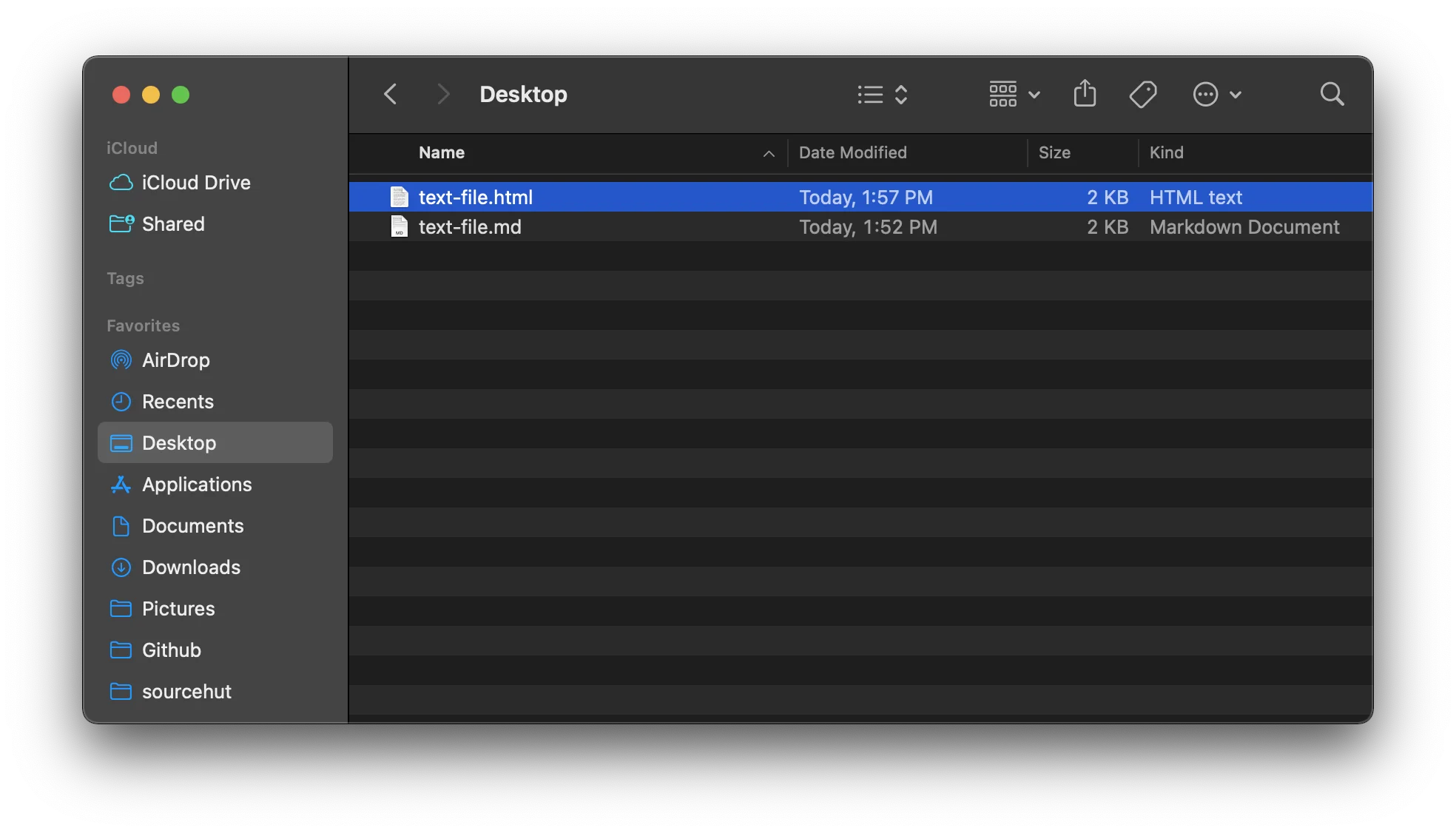
Our converted document is now available in HTML. Absolutely glorious.
No Limits
Although this article has mainly focused on converting documents to HTML, pandoc is so powerful you could do any number of conversions. Re-using these steps above, you have the ability to make as many different conversion quick actions as your heart desires!
Have fun converting!